Leave the Office Earlier
a news"E"letter from The Productivity
Pro - Laura Stack
|
In Leave
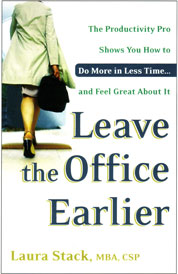
the Office Earlier, The New York Times calls Leave the Office Earlier, "...the best of the bunch." The Library Journal, New York, NY named Leave the Office Earlier one of the "Best Business Books 2004"... Order this indispensable tool for the overworked and time challenged at Amazon.com and receive 20% off its retail price. More of The Productivity Pro's Resources |
| Laura in the News! |
|
Great News! Leave the Office Earlier was named one of the best of 2004 see... WashingtonPost.com - Career Advice transcript Are
We There Yet?--Best Business Books 2004 |
|
Where in the World is Laura? |
|
April May June August September October November December Visit Laura's Calendar On-line for her complete availability. |
| Copyright Information |
|
© 2005 Laura Stack, MBA, CSP. All rights reserved. Portions of this newsletter may be reprinted in your organization or association newsletter, provided the following credit line is present: "Laura M. Stack, MBA, CSP, is "The Productivity
PRO!"®,
helping people leave the office earlier, with less stress, and more to show for
it. She presents keynotes and seminars on time management, information overload,
and personal productivity. Contact Laura at 303-471-7401 or Laura@ |
|
|
| Subscription Information |
|
"The Productivity PRO!"� news"E"letter is a monthly electronic newsletter distributed to our clients, human resource personnel, and colleagues to help them leave the office earlier, with less stress, and more to show for it! To subscribe, go here. If you no longer wish to receive the newsEletter, follow the instructions at the bottom of this post. Don't miss an Issue: Share it: |
|
Contact Laura: |
| Feature Article | |||||||||||||||||||||||||||||||||||||||||
|
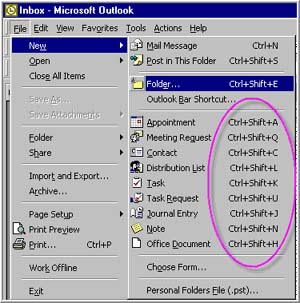
Laura's Favorite Technology Tricks! Who would have thought that, even five years ago, we would be so connected and dependent on our computer, email, voicemail, the Internet, Blackberries, PDAs, cell phones, and pagers...the list goes on and on. Today's workplace requires knowledge workers to be technologically savvy. Technology can undoubtedly improve your productivity by helping you perform many of your tasks more efficiently. This article presents some neat tips and tricks on using technology to your advantage. Learn Shortcuts. If you find yourself opening the same computer file over and over again from the Start menu, why not create a shortcut on your desktop to that file? You could also use shortcut keys to replace any point and click feature, speed up the process by using the keyboard instead. I often need to change the case of my text from sentence case to capitals, and I find it tedious to use the menu system. Instead, use a shortcut. With the cursor on the word to capitalize, hold shift and press F3, once to capitalize the first letter, twice to capitalize the entire word, and a third time to lower case. If the word is already capitalized the sequence works anyway: "Capital" becomes "CAPITAL," becomes "capital" in that order (for MS Word). Most are a combination of two or three keys that you will need to hold down simultaneously to trigger the command. While they may seem a little awkward at first, they will become second nature once you start using them regularly. Here are my favorites: Microsoft Office:
Microsoft Outlook:
To find shortcuts, look at the menus - the shortcut will be across from the menu option.
Create rules to automatically move email. Once you create personal folders, you can create rules to automatically move certain types of email, such as weekly reports and newsletters. Any time you can avoid moving an email manually, you save time. However, only use this feature for "reference" items, not emails requiring a response. You don't want to be checking multiple folders to see if anything new came in. Check under "Help" for "filters" or "organize." Use the subject field to indicate contents and priority. Use the subject field to give a quick summary of the contents and the priority. Don't just say, "Hi!" or "From Laura." Agree on acronyms to use that quickly identify actions. For example, your team could use <AR> to mean "Action Required" or <MSR> for the Monthly Status Report. It's also a good practice to include the word "Long" in the subject header so the recipient knows the message will take time to read. A message over 100 lines is generally considered long. Instead of sending a one-line text message to a Blackberry, send the message in the subject line, using <EOM> to signal the End of Message. The recipient doesn't have to even open the email to get the message. Here are some common codes that will help your reader quickly determine the purpose and urgency of your message: <AR> Action Required Control scrolling speed. Often when you need to highlight a lot of text in Word or rows in Excel, the screen starts scrolling so fast you can't stop it until it's way past what you wanted to highlight. The simplest way to highlight more than what's on your screen is to use the Shift key in combination with cursor movement keys. For example, hold down the Shift key and the down arrow. Much less frustrating.
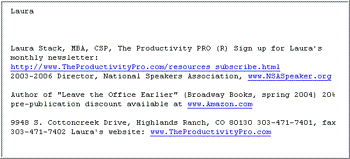
Use signatures as templates. In addition to providing contact information at the end of an email message, signatures are helpful for storing text you type frequently. For example, if you sell products on your website, you could use a signature called "Thank you template" to insert in an email to the purchaser. I frequently reply to media inquiries, so I have a signature called "PR leads response" I can quickly insert into a message to a reporter. Here is a signature I use called "Evaluation form return" that I send when people complete my seminar evaluations in class:
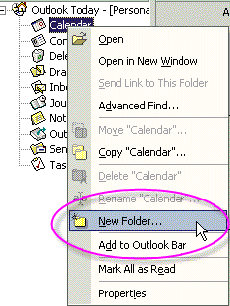
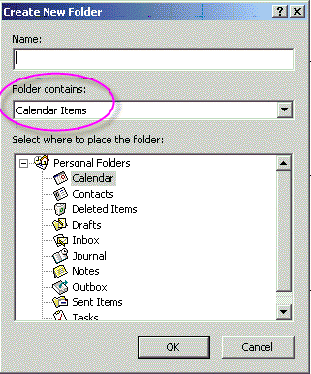
Make notes in an email message. When you call someone in response to an email message, you have no way of seeing you've responded to the message. If you try to type in the message, you can't. But there IS a way to type right into the message itself. Just open the email message, click on the Edit menu, and then select "Edit Message." Make your notes and then click on the File menu, then select save. The next tine you open that email message, your notes will be right at the top!!! View files in a convenient format. When you click on File, Open in Microsoft Office (as well as Windows Explorer, My Documents, and many other Windows programs), you can view the list of files in different ways. Click on the View button in the top right of the window (there should be a little down arrow, too). There are different view options - thumbnails, previews, properties, icons, list, details, etc. (depends on your version). Create separate calendars to track leave requests or appointments for others that don't impact your schedule. If others need to use it, create a new calendar in the Shared folders.
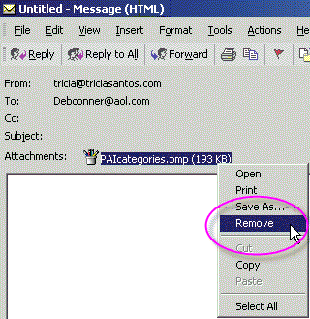
Remove the attachment from the message before moving to a folder, calendar or tasks. You may now save the original message while saving room in Outlook.
NOTE: This works exactly the same for messages sent as well as received. Use the auto responder when you're unable to respond within 24 hours. It's not necessary to respond to messages the minute you receive them. In fact, this is a huge distraction and productivity drain. It is, however, customary to expect people to check their email at least once a day and respond to messages. Set aside regular times to check and respond to email. If you think the importance of a message justifies it, immediately reply briefly to an email message to let the sender know you got it, even if you will send a longer reply later. If you will be gone, set your out-of-office message to specify when you'll return and who is covering for you in your absence. Save a tree. The File, Print dialog box often has some options you've needed and didn't know existed. For example, if you just want to print a few paragraphs in Word, slides in PowerPoint, or cells in a spreadsheet, highlight them first. Then, when you click on File, Print, select the option to print "Selection." Customize your toolbars. Show icons for features you use most often. For example, I like to use Title Case in Word. Click on View, Toolbars, Customize. On the left side you'll see menu titles. On the right side are the items in that menu. If you see an icon you want to have on your toolbar, just click and drag it to where you want it to appear. With that dialog box open, you can move icons around, too. And, to get rid of an icon, with that dialog box open, just click on the icon in the toolbar and drag it down off the toolbar and let go. Keep documents to one page. The leaders at Proctor & Gamble once decided that paper or electronic documents could not exceed one page. Even their multi-million dollar proposals are summarized on one page. Support materials are available and provided if requested, but this practice ensures the tedium of reading and reviewing the document is gone (and it saves lots of trees, too). From the Print Preview screen, click on the Fit to Page button.
High-tech devices and software mean speed and availability. Technology should save time, increase efficiency, and make life easier. Many times, however, we feel like technology is the master and we are the servants. Technology can waste time and decrease productivity if not used correctly. Hopefully this article gave you a few new ideas on how to take advantage of the features and capabilities you already have. Make it a productive day! � |
|||||||||||||||||||||||||||||||||||||||||
|
|
|||||||||||||||||||||||||||||||||||||||||
| Hot Links | |||||||||||||||||||||||||||||||||||||||||
|
Survey Finds Workers Average Only Three Productive
Days per Week :: Yahoo News (press release) - USA. The Microsoft Office Personal
Productivity Challenge (PPC), which drew responses from more than 38,000 people
in 200 countries, rated workers' individual productivity. -more- Time management: Keep the Pareta Principle in
mind :: Patuxent River Tester - Patuxent River, MD, USA. "... This observation
has, over time and through various applications, come to be called the "Pareto
Principle" or the "80-20 Rule." -more- Can you increase productivity by actually doing less? :: Globe and Mail - Canada. To help cope with increased workloads, some executives are now hiring their own personal "productivity coaches." Can you afford this luxury? -more- |
|||||||||||||||||||||||||||||||||||||||||
|
|
|||||||||||||||||||||||||||||||||||||||||
| Ask the Expert | |||||||||||||||||||||||||||||||||||||||||
|
Q: Thank you, Laura, for the newsletter. I enjoyed the seminar in New Orleans. My basic problem in time management is keeping my desk clutter free. When I start to work on a file and if I don't have all the pieces it tends to stay open on my desk and then it leads to more then my desk feels overwhelming. The other problem I have is dealing with my mail in that I let it stock pile and then have a hard time getting to it. What ever advice you can provide would be very helpful. Joey L. A: Joey, you're not alone! In this era of attempted multi-tasking, it's very easy to get cluttered very quickly! Make sure when you're interrupted on a project, grab a sticky note before you switch tasks or leave. Write the VERY NEXT action that you need to take (i.e., "where you were") on the project. Then put the sticky note on the paper or close the project file and throw it in a vertical file in arm's reach for CURRENT projects only. Each night, review your current projects and make a fresh to-do list, writing out the top things that you need to do on your most important projects to move it along. In terms of your mail, make it a point to SORT it each day. You don't have to COMPLETE the items, just get it out of your in-box. Do one of the 6 D's©: 1. Discard (toss it, recycle, or shred) Good luck! |
|||||||||||||||||||||||||||||||||||||||||
|
|
|||||||||||||||||||||||||||||||||||||||||
| Featured Seminar | |||||||||||||||||||||||||||||||||||||||||
|
Save the Dates for Our
Next Public Seminar! Dates: September 7 & 8, 2005 September 7 Meetings, meetings, meetings! Where minutes are taken and hours are wasted. Today's managers and professionals spend so much time attending them...you'd think most would be trained in how to plan and run them. Not so. Most meetings frustrate employees, because agendas aren't distributed, objectives aren't defined, time runs over, and no decisions are made. Another two hours of your day down the drain! This course gives people who call meetings the requisite skills to plan and execute a productive meeting, and follow-up properly afterward. It also provides the protocols necessary to keep a meeting on the right track, even if you're just attending. You will learn to achieve the objectives of the meeting, in a minimum amount of time, in a way that's satisfying to all participants. September 8 Whether you are remodeling your basement, coordinating a social event, or managing a new software release, the competencies and skills of project management are the same. Everyone manages projects at least part-time. In fact, many people in an organization do not have a job; rather, they pursue a number of projects. This course will help you carry out your projects productively with proper planning, scheduling, and monitoring. The complex tools you've heard about in project management are refreshingly absent. The process is simple, and the tools presented do not presume any prior knowledge of the subject. Questionnaires, checklists, and worksheets are provided. Tuition: Your investment for each workshop is only $295 per or $245 when enrolling three or more individuals for the same workshop. A $100 discount will be given for the second day if you enroll in both seminars. Registration: On-line registration is preferred. Or you can print the enrollment form and fax it to 303-471-7402 with credit card information. You can also mail a check made out to The Productivity Pro® to 9948 S. Cottoncreek Drive, Highlands Ranch, CO 80130. You will receive a written confirmation of your enrollment. -Register Here- Participant Materials No Substitution or Cancellation Fees Other Information: |

 Laura Stack, MBA, CSP Publisher |
||
| Message from Laura | ||
|
NEWS FLASH! I just got back from an international trip to Singapore! Wow, what an incredible experience. I was featured at a Rally with a group of seven speakers from the U.S., including Mark Sanborn, W. Mitchell, Mary LoVerde, Terry Paulson, Scott Friedman, Joseph Mitchelli, and Jana Stanfield. I was the opening speaker for 600 Singaporeans. I received this note from the promoter of the event: "Thank you for all you have done to make
this a memorable and truly meaningful experience. Your enthusiasm and professionalism
has truly been an inspiration for me. I thank you for your wisdom and sound advice.
We make a great team and I sincerely look forward to share further experiences
with you. English is the official language, so it was relatively easy to communicate. The professionals there are working long days, just like we are, and clamoring for more quality time in their personal lives, just like we are. So my productivity message was very well received, and I left feeling humbled by the warm reception. Bottom line, we are all more similar than we are dissimilar. We all want to make a difference. We all want to work hard. We all want to be loved and be loved. The U.S. has joined hearts with brothers and sisters in Singapore all fighting the same good fight!
|
||
|
|
||
|
||
|
|
||
| Words of Wisdom | ||
|
"When I hear somebody sigh, 'Life is hard,' I am always tempted to ask, 'Compared to what?'" -- Sydney Harris "The greater part of our happiness or misery depends on our dispositions, and not on our circumstances." -- Martha Washington In reality, killing time is only the name for another of the multifarious ways by which Time kills us. -- Sir Osbert Sitwell |
||
|
|
